Have you ever felt confused while claiming tax relief on salary arrears or pension arrears? If yes, you are not alone. Every year, thousands of salaried taxpayers struggle with Form 10E. However, things become much easier when you use the Automatic Income Tax Form 10E in Excel. Instead of manual calculations, you simply enter figures and let Excel do the hard work. Think of it like using Google Maps instead of asking for directions repeatedly—it saves time, avoids errors, and keeps you calm. Therefore, this article explains everything you need to know, step by step, in simple language.
Table of Contents
| Sr# | Headings |
| 1 | What is Income Tax Form 10E? |
| 2 | Why Form 10E is Mandatory |
| 3 | Understanding Section 89(1) |
| 4 | What is the Automatic Income Tax Form 10E in Excel? |
| 5 | Key Features of the Excel Utility |
| 6 | Financial Years Covered (FY 2000–01 to FY 2025–26) |
| 7 | Benefits of Using Excel Format |
| 8 | Who Should Use Form 10E? |
| 9 | Step-by-Step Guide to Fill Form 10E in Excel |
| 10 | Common Mistakes to Avoid |
| 11 | How Excel Automation Reduces Errors |
| 12 | Compatibility with Income Tax Portal |
| 13 | How to Download Automatic Income Tax Form 10E in Excel |
| 14 | Practical Example for Better Understanding |
| 15 | Final Tips Before Submission |
1. What is Income Tax Form 10E?
Accordingly, Income Tax Form 10E is a declaration form used to claim tax relief under Section 89(1). above all, In simple terms, it helps you reduce the extra tax burden when you receive salary arrears, advance salary, or family pension arrears. Moreover, without this form, the Income Tax Department may reject your relief claim. Hence, filing it correctly is extremely important.
2. After all, why is Form 10E mandatory
First of all, the Income Tax Department requires Form 10E before allowing relief under Section 89(1). Otherwise, even if your calculation is correct, your claim may fail. Therefore, submitting Form 10E is not optional—it is compulsory. Additionally, it ensures transparency and proper tax compliance.
3. Therefore, Understanding Section 89(1)
Section 89(1) provides relief when income is received in arrears or advance. Because such income increases tax suddenly, this section spreads the tax burden across earlier years. As a result, you pay a fair amount of tax instead of a heavy lump sum. Consequently, Form 10E becomes the bridge between relief and compliance.
4. However, What is the Automatic Income Tax Form 10E in Excel?
Automatic Income Tax Form 10E in Excel is a smart, pre-designed spreadsheet. It automatically calculates relief once you enter the required figures. Instead of manual calculations, formulas work silently in the background. Thus, Excel acts like a calculator with a brain—fast, accurate, and reliable.
5. Key Features of the Excel Utility
Key highlights include:
- Auto-calculation of relief
- Separate sheets for different financial years
- Built-in formulas to avoid mistakes
- User-friendly layout
- Printable format
Because of these features, even a non-technical person can use it confidently.
6. Financial Years Covered (FY 2000–01 to FY 2025–26)
One major advantage is its wide coverage. This Excel utility supports FY 2000–01 to FY 2025–26. Therefore, whether your arrears relate to old or recent years, you can calculate relief accurately. Moreover, this long-range coverage makes it future-ready.
7. Above all, the Benefits of Using Excel Format
Using Excel offers several benefits. Firstly, it saves time. Secondly, it minimises calculation errors. Thirdly, it provides clarity. Furthermore, you can store, edit, and reuse the file anytime. Hence, Excel becomes a dependable long-term solution.
8. Who Should Use Form 10E?
You should use Form 10E if you:
- Received salary arrears
- Got an advance salary
- Received family pension arrears
- Changed pay scale due to Pay Commission revision
In short, if income relates to previous years, Form 10E is essential.
9. Step-by-Step Guide to Fill Form 10E in Excel
Follow these simple steps:
- Download the Excel file
- Enter personal details
- Select relevant financial years
- Input the arrears amount year-wise
- Let Excel calculate relief automatically
Finally, verify the figures carefully before submission.
10. Common Mistakes to Avoid
Many taxpayers make avoidable errors. For instance, they enter incorrect year-wise income or skip Form 10E filing. Additionally, some mismatch Excel data with the Income Tax Return. Therefore, double-check everything to stay safe.
11. How Excel Automation Reduces Errors
Automation eliminates human mistakes. Since formulas calculate tax differences instantly, chances of error drop sharply. As a result, Excel ensures accuracy, consistency, and confidence.
12. Compatibility with Income Tax Portal
The Excel calculations align with the Income Tax Portal’s requirements. Thus, figures generated from the Automatic Income Tax Form 10E in Excel match online submissions smoothly. Consequently, filing becomes hassle-free.
13. How to Download Automatic Income Tax Form 10E in Excel
You can download the Excel utility from trusted tax websites or professional blogs. Always ensure the file supports the latest financial year. After downloading, enable editing and start entering data.
14. Practical Example for Better Understanding
Imagine receiving ₹1,20,000 arrears for the last three years. Without relief, tax shoots up. However, Excel distributes income year-wise and recalculates tax. As a result, you pay less tax overall. Just like spreading weight evenly in a bag makes it easier to carry.
15. Final Tips Before Submission
Before submitting Form 10E:
- Recheck all figures
- Match data with Form 16
- Save a backup copy
- Submit Form 10E before filing ITR
These steps ensure smooth processing.
In Conclusion
In conclusion, the Automatic Income Tax Form 10E in Excel is a powerful yet simple tool for salaried taxpayers. It saves time, reduces stress, and ensures accuracy. Instead of manual confusion, Excel offers clarity and confidence. Therefore, if you want a smooth tax filing experience, this Excel utility is your best companion.
In addition, Frequently Asked Questions (FAQs)
- Is Form 10E mandatory for claiming relief under Section 89(1)?
Yes, Form 10E is compulsory before claiming tax relief under Section 89(1). - Can I use the Automatic Income Tax Form 10E in Excel for old financial years?
Yes, the Excel utility covers FY 2000–01 to FY 2025–26. - Is Excel-based Form 10E accepted by the Income Tax Department?
Yes, as long as figures match the online Form 10E submission. - Who benefits most from using the Automatic Income Tax Form 10E in Excel?
Salaried employees receiving arrears or advance salary benefit the most. - Does Excel automatically calculate tax relief under Section 89(1)?
Yes, built-in formulas calculate relief automatically once data is entered.
Download Automatic Income Tax Form 10E (FY 2000–01 to FY 2025–26) in Excel


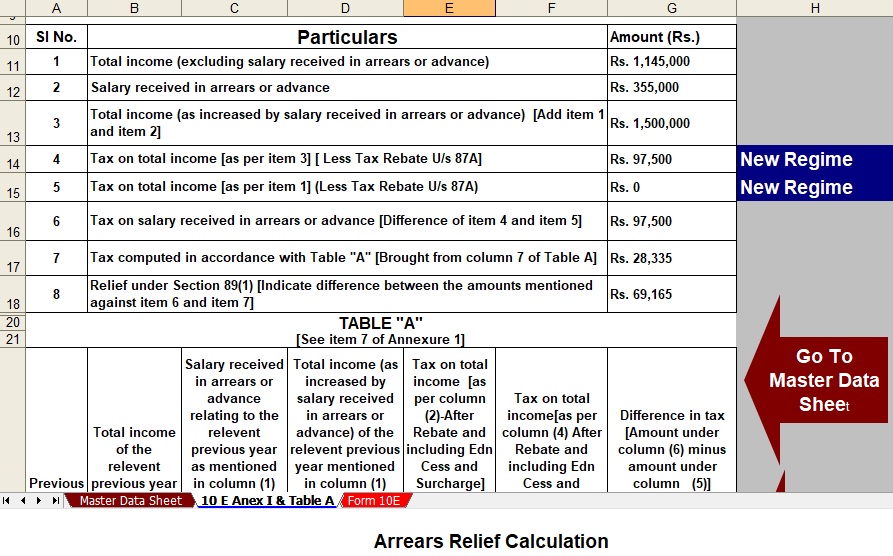
Feature of this Excel Utility:-
First of all, when you download the Automatic Income Tax Form 10E (FY 2000–01 to FY 2025–26) in Excel, you instantly simplify complex tax calculations. Moreover, the Excel file automatically computes relief under Section 89(1) as soon as you enter year-wise arrear details.
Additionally, it removes the need for manual formulas, thereby reducing calculation errors. Furthermore, the tool clearly separates data for different financial years, so confusion never arises.
As a result, users understand their tax relief more easily. Consequently, filing Form 10E becomes faster and stress-free. Meanwhile, built-in checks help maintain accuracy throughout the process.
In addition, the user-friendly layout ensures smooth navigation even for beginners. Ultimately, this automated Excel utility saves time, improves accuracy, and ensures compliance with income tax rules.